Follow these simple steps to add a new subcategory to your MNASATI store:
Step 1: Access the Subcategories Section
1. Log into your admin dashboard
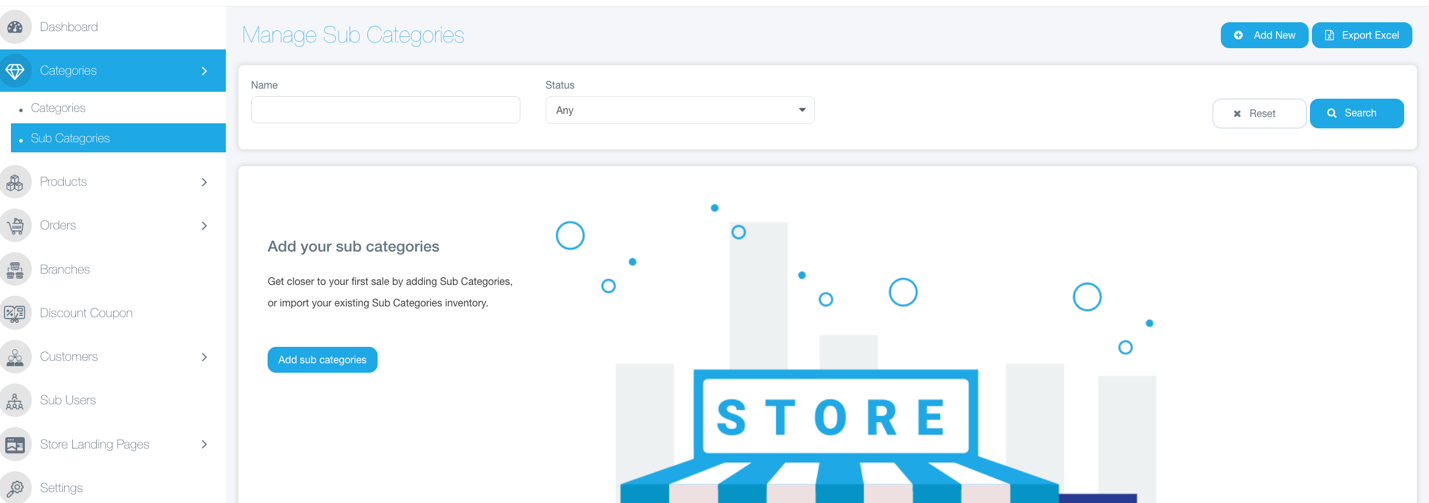
2. From the left sidebar menu, click on "Categories"
3. Select "Sub Categories" from the dropdown menu
4. You'll see the "Manage Sub Categories" page with all existing subcategories
Step 2: Start Creating a New Subcategory
1. Click the blue "Add New" button in the top right corner
2. This will take you to the "Add New Sub Category" form
Step 3: Fill in the Required Information
Parent Category
· Click on the "Please Select" .
· Choose the main category that this subcategory will belong to
· For example: if adding "Men's Shoes", select "Fashion" as the parent category
Subcategory Names
· Sub Category Name (EN): Enter the subcategory name in English
· Sub Category Name (AR): Enter the subcategory name in Arabic
· Make sure both names clearly describe the subcategory
Image Upload
· Click on "Select Photo" under the Image section
· Upload an image that represents your subcategory
· Recommended size: 500px × 500px (JPG /JPEG format recommended) and less than 2megabites.
Status and Sorting
· Status: Toggle the switch to enable/disable the category
o Red (Off): Category is disabled
o Green (On): Category is active and visible
· Sort: Enter a number to control the display order (lower numbers appear first)
Step 4: Save Your Subcategory
1. Review all the information you've entered
2. Click the blue "Save" button in the bottom right corner
3. You'll be redirected back to the subcategories list
4. Your new subcategory should appear in the table
Tips
· Use clear, descriptive names that customers will easily understand
· Upload high-quality images that represent the subcategory well
· Choose appropriate parent categories to help customers navigate your store
· Set logical sort numbers to organize subcategories in a meaningful order
Post Creation
· Your new subcategory will appear in the main subcategories list with a unique Id.
· You can edit it anytime by clicking the "Edit" button
· You can delete it using the "Delete" button if needed
· The subcategory will be available for customers to browse in your store
Troubleshooting
· If the image you choose isn’t uploading, check file size and format
· If no image is uploaded ,the Default image will appear